

搜索到
58
篇与
moonjerx
的结果
-
 如何在群晖 NAS 上使用 Docker 运行 ZeroTier 本文将指导您如何在群晖 NAS 上使用 Docker 运行 ZeroTier 容器,从而实现虚拟私有网络 (VPN) 的功能。ZeroTier 是一款开源的虚拟网络管理工具,可以将不同的设备连接到同一个虚拟网络中。前提条件确保您的群晖 NAS 允许 SSH 连接。确保 Docker 应用已在群晖 NAS 上安装并且运行正常。您需要一个有效的 ZeroTier 身份验证令牌。使用 ip tuntap 创建 TUN 设备由于群晖 NAS 并不直接支持 /dev/net/tun,您需要使用 ip tuntap 命令来创建 TUN 设备。请注意,群晖 NAS 的 ip tuntap 命令可能不可用,因此您需要采用其他方法来模拟 TUN 设备的功能。创建 TUN 设备加载 TUN 模块:sudo modprobe tun手动创建 TUN 设备:sudo ip tuntap add dev tun0 mode tun sudo ip link set tun0 up检查 TUN 设备状态检查 TUN 设备的状态:ip link show tun0创建 ZeroTier 容器为了在群晖 NAS 上运行 ZeroTier 容器,您需要使用以下命令。此命令已经过实践验证,并且在群晖 NAS 上可行。示例命令docker run -d \ --name ztclient \ --restart=always \ --device=/dev/net/tun \ --net=host \ --cap-add=NET_ADMIN \ --cap-add=SYS_ADMIN \ -v /volume1/docker/dockerfile/zerotier/ztclient/data:/var/lib/zerotier-one \ zerotier/zerotier-synology:1.8.10 \ -e ZT1_AUTH_TOKEN=<your_auth_token>命令解析-d: 以守护进程模式运行容器。--name ztclient: 为容器命名。--restart=always: 容器会在系统启动时自动重启。--device=/dev/net/tun: 挂载 /dev/net/tun 设备,以便容器能够使用 TUN 功能。--net=host: 使用宿主机网络栈,而不是 Docker 的默认网络栈。--cap-add=NET_ADMIN: 增加容器的权限,使其能够管理网络接口。--cap-add=SYS_ADMIN: 增加容器的权限,使其能够执行系统级操作。-v /volume1/docker/dockerfile/zerotier/ztclient/data:/var/lib/zerotier-one: 将宿主机上的目录挂载到容器内,用于持久化存储 ZeroTier 数据。zerotier/zerotier-synology:1.8.10: 指定要运行的 Docker 镜像及其版本。-e ZT1_AUTH_TOKEN=<your_auth_token>: 设置环境变量,其中 <your_auth_token> 是您的 ZeroTier 身份验证令牌。注意事项确保您已经创建了 /volume1/docker/dockerfile/zerotier/ztclient/data 目录。如果您遇到权限问题,可能需要使用 sudo 来运行 Docker 命令。如果您之前从未在群晖上使用过 Docker,您可能需要先使用 sudo 来执行 Docker 命令。如果您经常使用 Docker,可以考虑将您的用户添加到 docker 组,这样就不需要每次都使用 sudo。结论通过上述步骤,您应该能够在群晖 NAS 上成功运行 ZeroTier 容器。如果您需要进一步的帮助,请随时提问。
 -
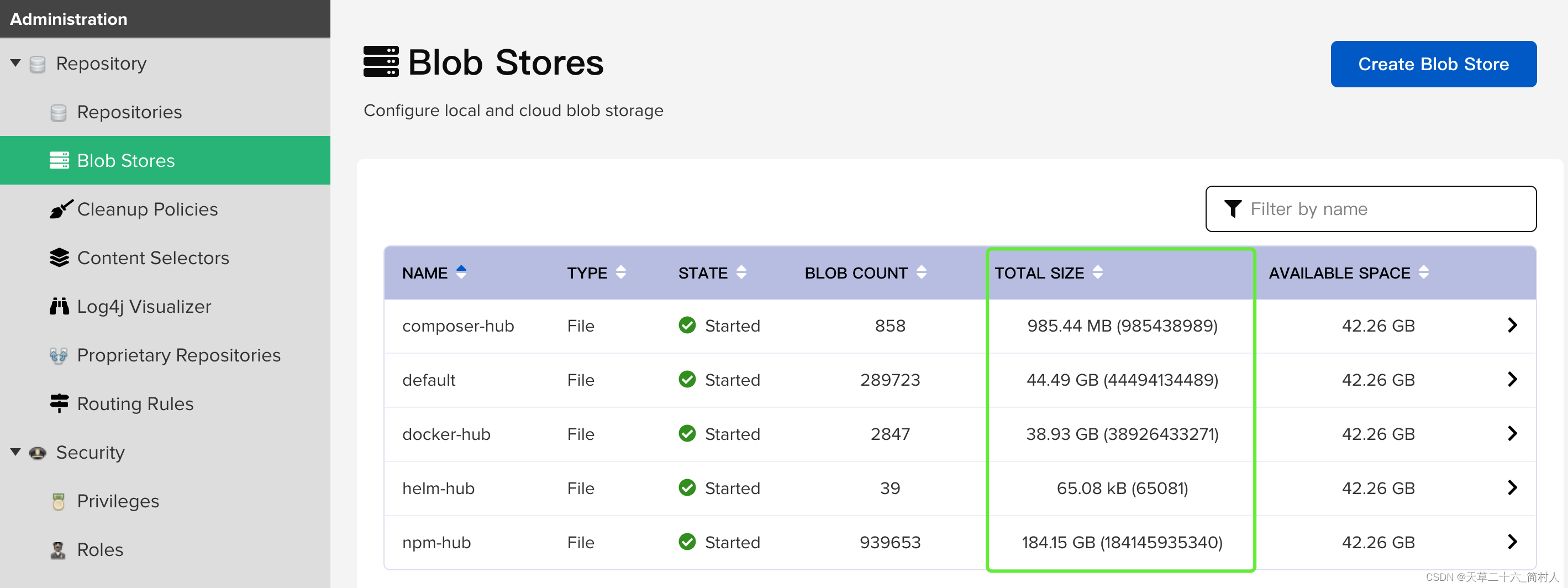
使用 Nexus 搭建 Docker 私库:定期清理无用的镜像,彻底释放磁盘空间 引言随着推送的 Docker 镜像数量越来越多,Nexus 服务器的磁盘空间可能会变得紧张。本文将指导你如何手动删除一些过期的镜像,并彻底释放磁盘空间。Docker 镜像清理步骤1. 删除镜像登录到 Nexus 的 Web 界面。寻找你想要删除的镜像。选中要删除的镜像,然后执行删除操作。2. 检查 Blob Stores删除完镜像后,回到 Blob Stores 页面查看空间使用情况。注意:删除镜像后,Blob Stores 中的空间并不会立即释放,因为这些镜像仅被标记为已删除。3. 创建任务释放空间在 system-tasks 下创建任务。选择 Admin - Compact blob store 任务。新建任务以清理 Docker 私库的 Blob Store。Maven 和 NPM 私库清理Maven 私库创建类似的任务来清理 Maven 私库的 Blob Store。NPM 私库同样创建任务来清理 NPM 私库的 Blob Store。实际效果通过上述步骤,磁盘空间成功释放了 20 多 GB。总结本文介绍了如何使用 Nexus 管理 Docker 私库,并通过创建任务彻底释放磁盘空间。同样的操作也可应用于 Maven 和 NPM 私库的清理。参考资料使用 Docker 官方的 Registry 创建的仓库面临的问题Nexus 3 清理 Docker 镜像 Task 深水炸弹Nexus3 自动物理清除多余一个以上的快照Nexus3 Docker 镜像清理策略 - Cleanup Policies关于作者名称: 天草二十六简介: CSDN 博客专家,拥有 17 年码龄。关注领域: Docker, 容器, 运维, npm, Maven联系方式: 博客主页版权声明本文遵循 CC 4.0 BY-SA 协议,转载请附上原文出处链接和本声明。原文链接
-
记忆力提升与训练指南 引言记忆力是人类学习新知、积累经验的重要能力之一。良好的记忆力有助于提高工作效率和个人成就。本指南汇集了一系列有关记忆训练的资源和技巧,旨在帮助读者提高记忆力并有效地学习新知识。相关资源无锡陶氏灵感培训有限公司天才密码超级记忆法超级学习法百度百科 - 记忆方法百度知道 - 记忆小窍门八种高效记忆方法及强化记忆的七个技巧记忆训练方法八种高效记忆方法设定训练目标 明确自己在一定时间内的任务量,提醒自己要集中注意力。经常进行这样的练习,可以在潜意识里留下深刻印象,从而提高学习质量。善于排除干扰 寻找安静的学习环境,避免外界干扰。同时,学习时尽量不要想其他事情,全心投入学习之中。讲究劳逸结合 人的记忆是有曲线的,合理安排休息时间,让学习成为一种乐趣而非负担。保持空间清净 学习时保持桌面整洁,有助于提高学习效率。学会理解记忆 将抽象的问题具体化,从理解的角度掌握知识。对于不需要理解的内容,如法律条文等,则可以直接记忆。经常回忆 学习完一章内容后,花些时间闭眼回想,检查自己的学习效果。采用多种手段来记忆 制作卡片、图表等便于携带的学习资料,利用碎片时间学习。其他有效方法 寻找个人的最佳记忆时间,调整饮食习惯等。强化记忆的七个技巧编口诀记忆法 利用汉字同音、谐音或编顺口溜的方式将所要记忆的内容浓缩成一两句话。数字组合记忆法 归纳总结以时间、百分比或金额为特征的数字内容,加深印象。缩字记忆法 取某些内容的关键字形成一句话,以点带面。列表格记忆法 对于复杂且相似的内容,可以通过列表的形式加深理解。对比记忆法 对于既是...又是...的知识点可以采取此类方法。归纳总结记忆法 做适当的归纳总结,收集相同类似的要点和重点,构建知识框架。情感调动记忆法 培养对所需记忆知识的好感,将其视为美好的事物,有助于加深记忆。其他参考资料快速提高记忆方法记忆训练例子记忆法种类右脑训练软件介绍右脑记忆方法记忆力训练PPT视频例子 - 老师上课形式视频例子 - 图形上课形式结语每个人的记忆方式都有所不同,找到最适合自己的方法至关重要。希望以上资源和技巧能够帮助你在学习过程中更加高效地掌握知识。不断实践和调整,你将能够显著提升自己的记忆力。
-
在HTML中播放SWF文件 尽管Flash Player已被逐步淘汰,但在某些情况下,你可能仍然需要在网页上播放SWF文件。以下是两种常用的方法:使用HTML嵌入代码可以通过直接在HTML中使用 <object> 和 <param> 标签来嵌入SWF文件:字中字游戏.swf<object type="application/x-shockwave-flash" data="yourfile.swf" width="width_value" height="height_value"> <param name="movie" value="yourfile.swf" /> <param name="wmode" value="transparent" /> <a href="yourfile.swf">Download Flash</a> </object>说明data 属性指定SWF文件的路径。width 和 height 属性定义播放器的尺寸。<param> 标签用于设置SWF文件的参数。如果用户浏览器不支持Flash,则显示链接以供下载。使用JavaScript和HTML通过使用JavaScript库(例如 swfobject)来动态创建HTML元素并嵌入SWF文件:<div id="flashContent"> <a href="yourfile.swf">Download Flash</a> </div> <script type="text/javascript"> var swf_height = "height_value"; var swf_width = "width_value"; var swf_file = "yourfile.swf"; var params = { menu: "false", wmode: "transparent", scale: "noScale", salign: "t" }; var attributes = { id: "myAlternativeContent" }; swfobject.embedSWF( swf_file, "flashContent", swf_width, swf_height, "9.0.0", "expressInstall.swf", false, params, attributes ); </script>说明需要引入 swfobject 库(在实际应用中应包含 <script> 标签来加载该库)。embedSWF 函数用于嵌入SWF文件,并允许传递多个配置选项。swf_height 和 swf_width 定义播放器的尺寸。swf_file 指定SWF文件的路径。params 对象用于设置SWF文件的参数。attributes 对象定义额外的HTML属性。注意请确保替换示例中的 "yourfile.swf"、"width_value" 和 "height_value" 为实际值。由于Flash Player的安全性和支持问题,许多现代浏览器不再支持Flash内容。因此,建议使用HTML5的 <video> 标签或其他现代技术,如WebGL或WebAssembly,来替代Flash。以上就是两种常见的在HTML页面中播放SWF文件的方法。
-
忘记青龙面板密码的解决方法 如果您忘记了青龙面板的密码,不用担心,本文将向您介绍几种解决方法,帮助您找回或重置密码。通过SSH登录服务器或主机使用docker exec命令进入青龙面板容器使用docker exec命令可以进入青龙面板的Docker容器内部。docker exec -it qinglong bash注意:这里的qinglong是青龙面板容器的名字,如果在容器中查询不到,请确认青龙面板容器的实际名字。查看账号和密码一旦进入了容器内部,可以使用cat命令查看青龙面板的账号和密码。cat /ql/data/config/auth.json这个文件包含了青龙面板的登录信息。通过命令查看账号密码使用宝塔面板查看如果您能够登录到宝塔面板,可以通过宝塔面板的文件管理功能找到对应的账号密码文件,通常位于/www/server/panel/data/*.login。使用Python脚本查看另外,您还可以通过执行以下命令在SSH终端中查看宝塔面板的账户和密码。cd /www/server/panel python tools.py panel testpasswd通过修改配置文件来重置密码如果上述方法都无法使用,还可以考虑通过数据库工具或直接修改配置文件来重置密码。在操作之前,请务必先备份您的数据,以防意外情况发生。通过数据库重置如果青龙面板的密码存储在数据库中,您可以使用数据库管理工具(如phpMyAdmin或MySQL Workbench)来直接修改密码字段。直接修改配置文件如果密码存储在某个配置文件中,可以直接编辑该文件来重置密码。nano /ql/data/config/auth.json修改文件中的密码字段,保存并退出。总结以上方法提供了不同的途径来解决忘记青龙面板密码的问题。根据您的具体情况选择最合适的方法进行操作。同时,为了避免类似问题的再次发生,建议定期备份重要数据,并记录好自己的账号密码信息。注意事项在执行任何敏感操作之前,请确保您有足够的权限。在尝试重置密码之前,请先备份相关数据。如果您不确定如何操作,请寻求专业人士的帮助。




您的IP: